Premium/Elite

Monitor webpages,
with screenshots.

Watch a visual area of a webpage and receive a Telegram notification when that selected area changes.

Visual monitoring

Useful when a website has no RSS feed and the change is visible on the page.

Premium/Elite

Create a screenshot monitor

This tutorial shows how to monitor a webpage for changes by selecting a visual area in a screenshot.

Step 01

Add a new webpage monitor

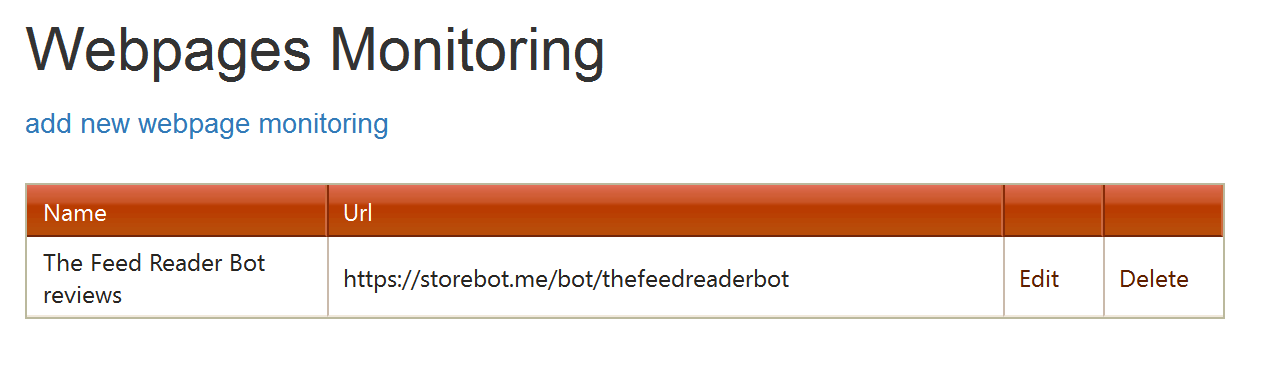
  1. Click the add new webpage monitoring link.
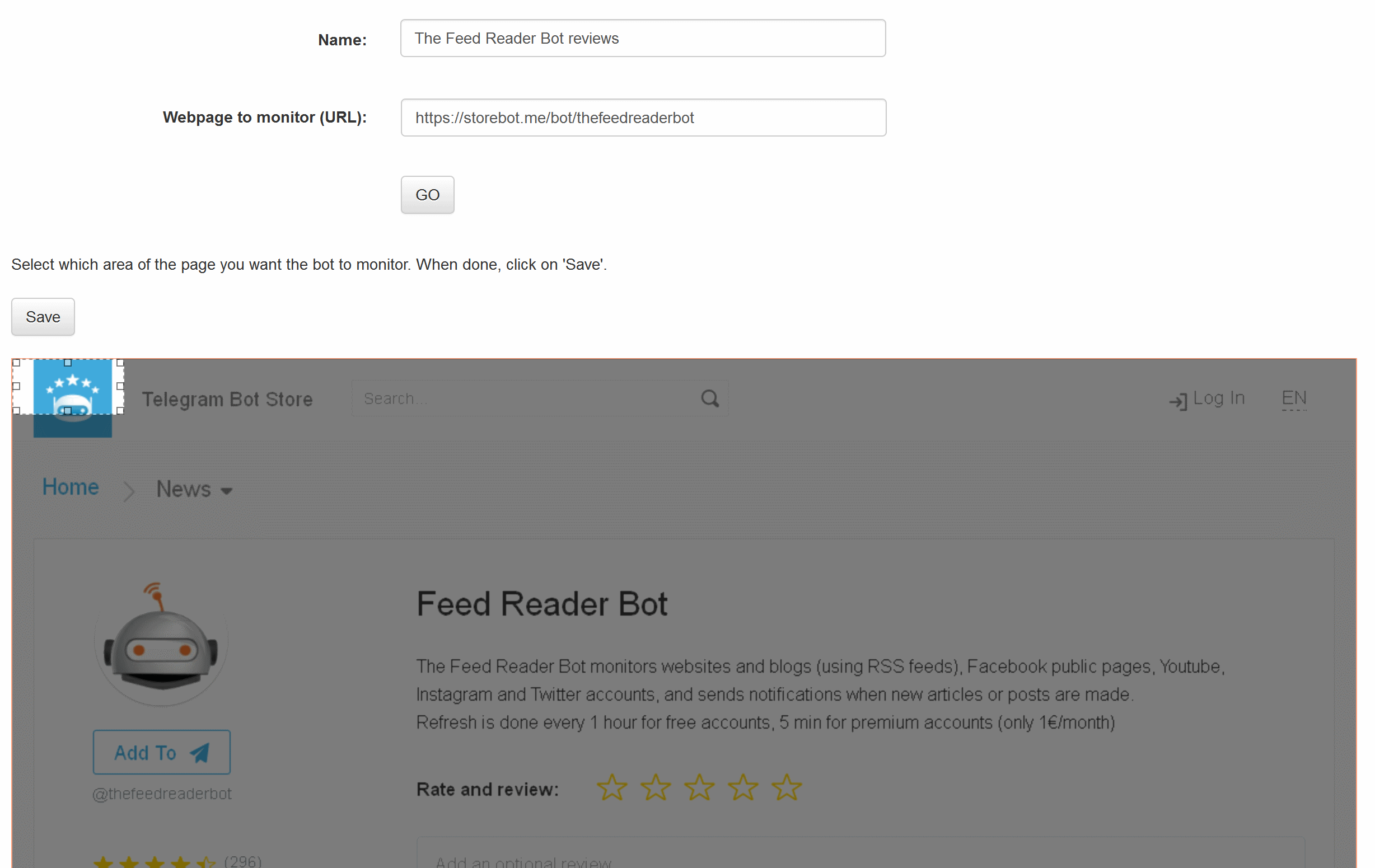
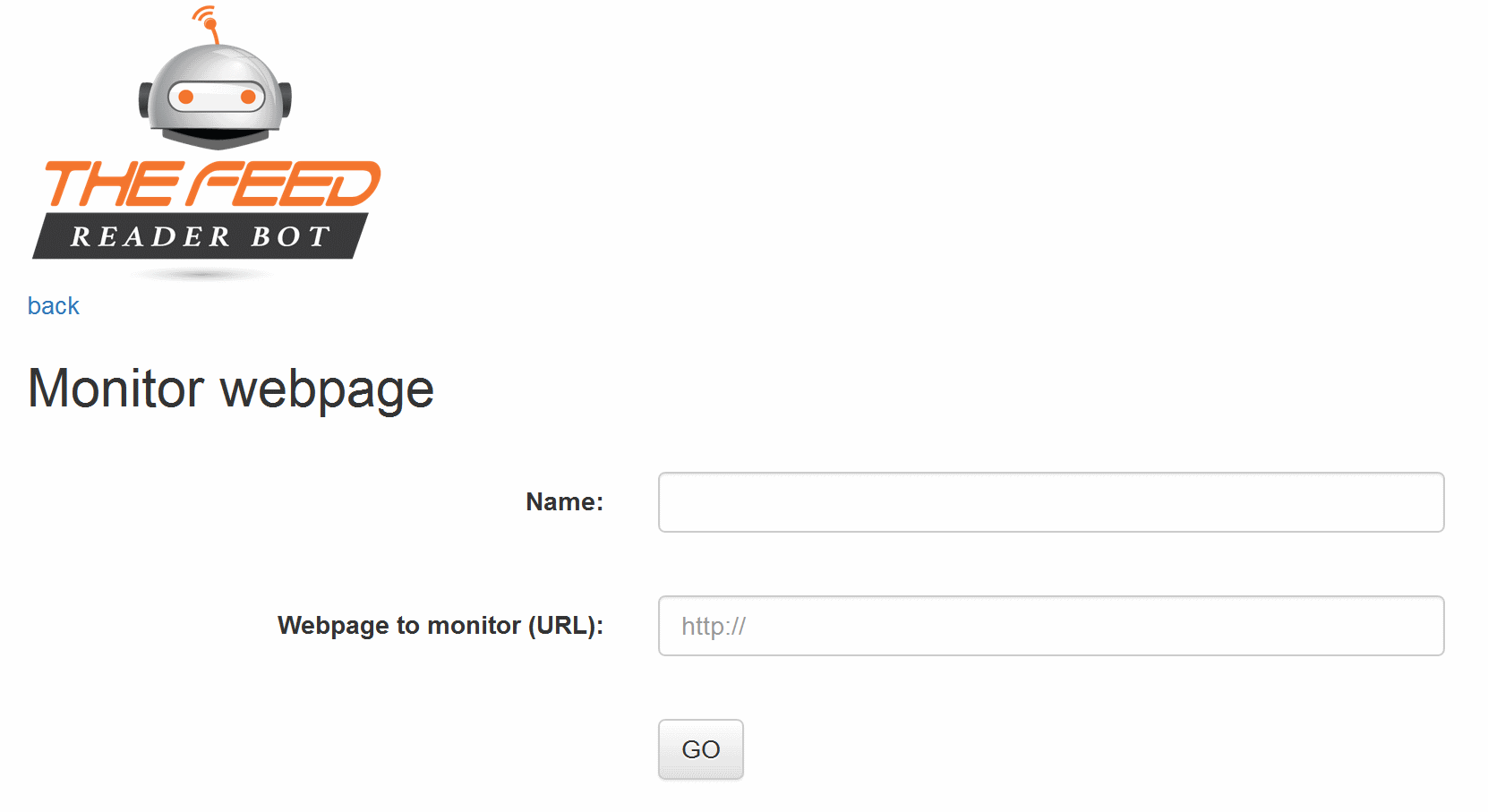
  2. Type a name. This name is used by the bot in its messages.
  3. Enter the URL of the page to monitor.
  4. Click GO.

In this example, the monitored page is the Storebot website, to be warned when new reviews are made.
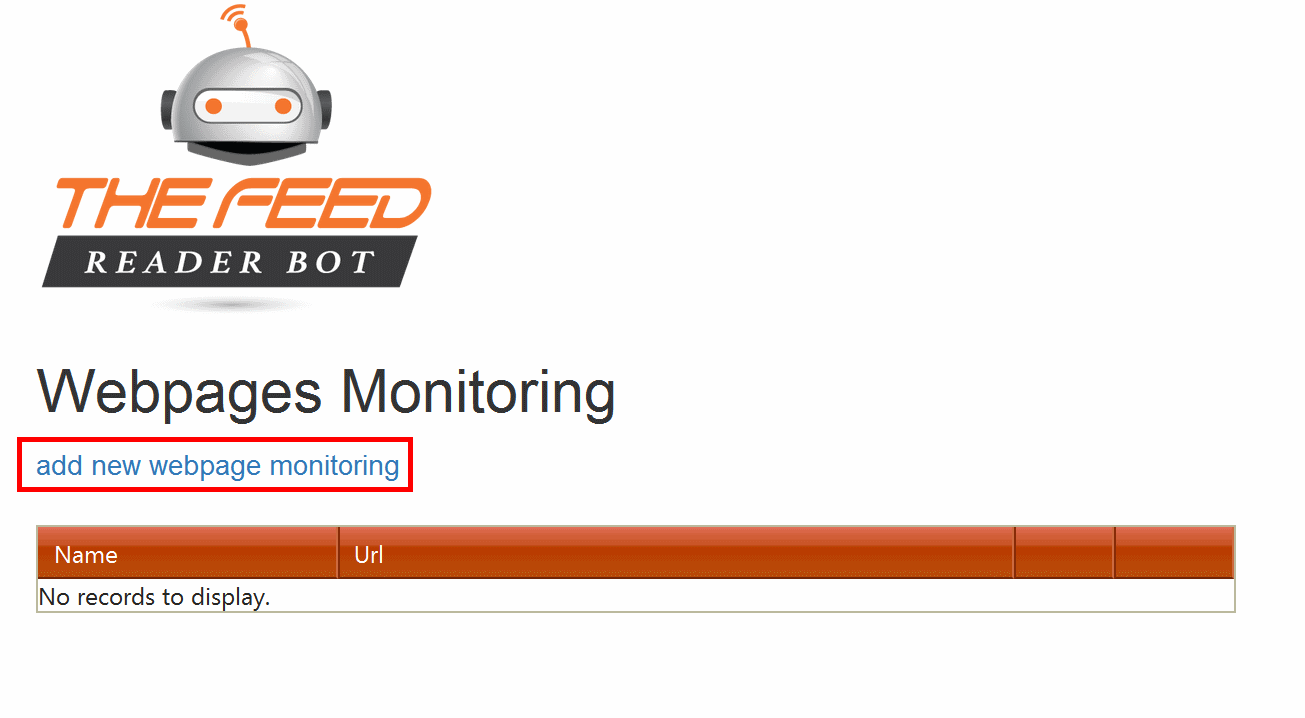
Add new webpage monitoring link
Add a new webpage monitor.
New webpage monitoring form
Open the monitor form.
Monitoring name and URL form
Enter name and URL, then click GO.
Step 02

Select the area to monitor

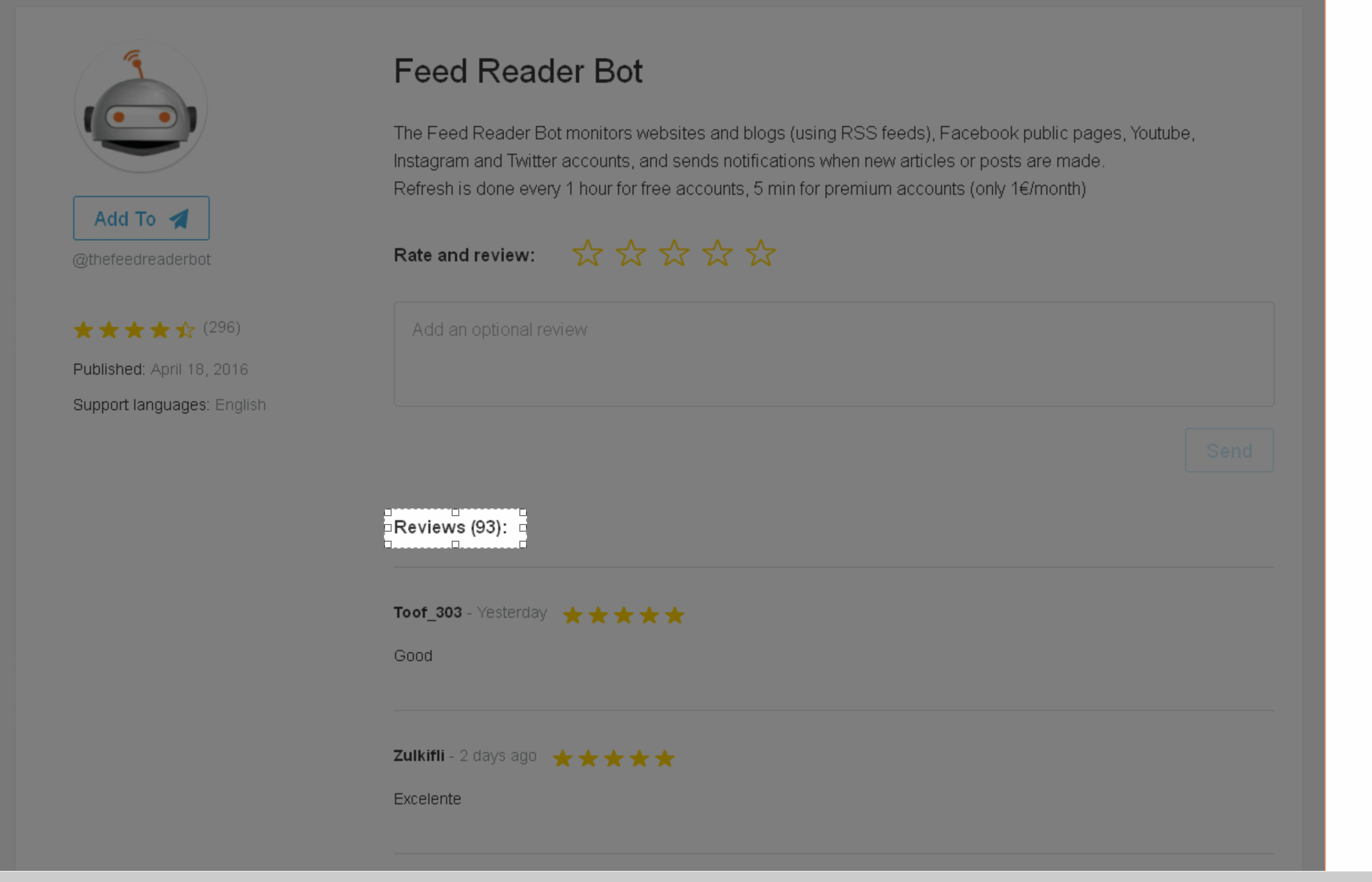
A screenshot of the webpage is displayed. Select the area you want to monitor for changes.

Here, the selected area is the Reviews (93) text, because this zone changes when new reviews are added.

Click Save to activate the monitor.

Select visual area on screenshot
Select the changing visual area.
Save screenshot monitor
Save the monitor.
Result

Receive a Telegram notification

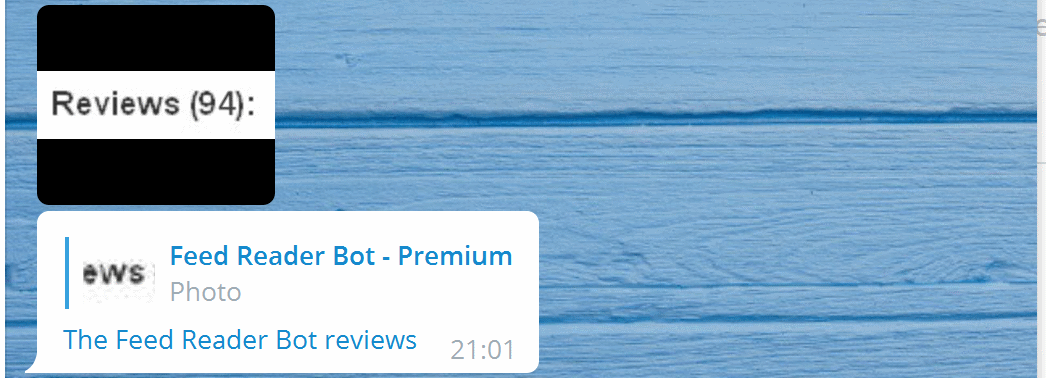
When the bot detects a change in the selected area, it sends you a notification.

Telegram notification for a screenshot monitor change
Notification sent when the selected area changes.

Need help?

If you have any trouble configuring screenshot monitoring, contact @jcmag on Telegram.

Contact support